
Learn the inspectagram process - the flow!
The inspectagram template is your roadmap through the home. Follow the same process in every chapter.
Start with the Global Template. Its Baseline is built to cover approximately 99% of the components found in most homes, giving you a ready-made roadmap to follow.
Start with the roadmap. Follow the Baseline, document what you find and add what's needed for the home you're inspecting.
Prep the Area
Get the area ready before you start documenting.
Turn on lights, open access to components, operate equipment as appropriate and take a quick look around.
Why prep first?
Complete the Baseline
Follow the icons from left → right.
Every chapter has a Baseline containing the components you would typically expect to inspect in that area.
📷 › See Bathroom Baseline Examples

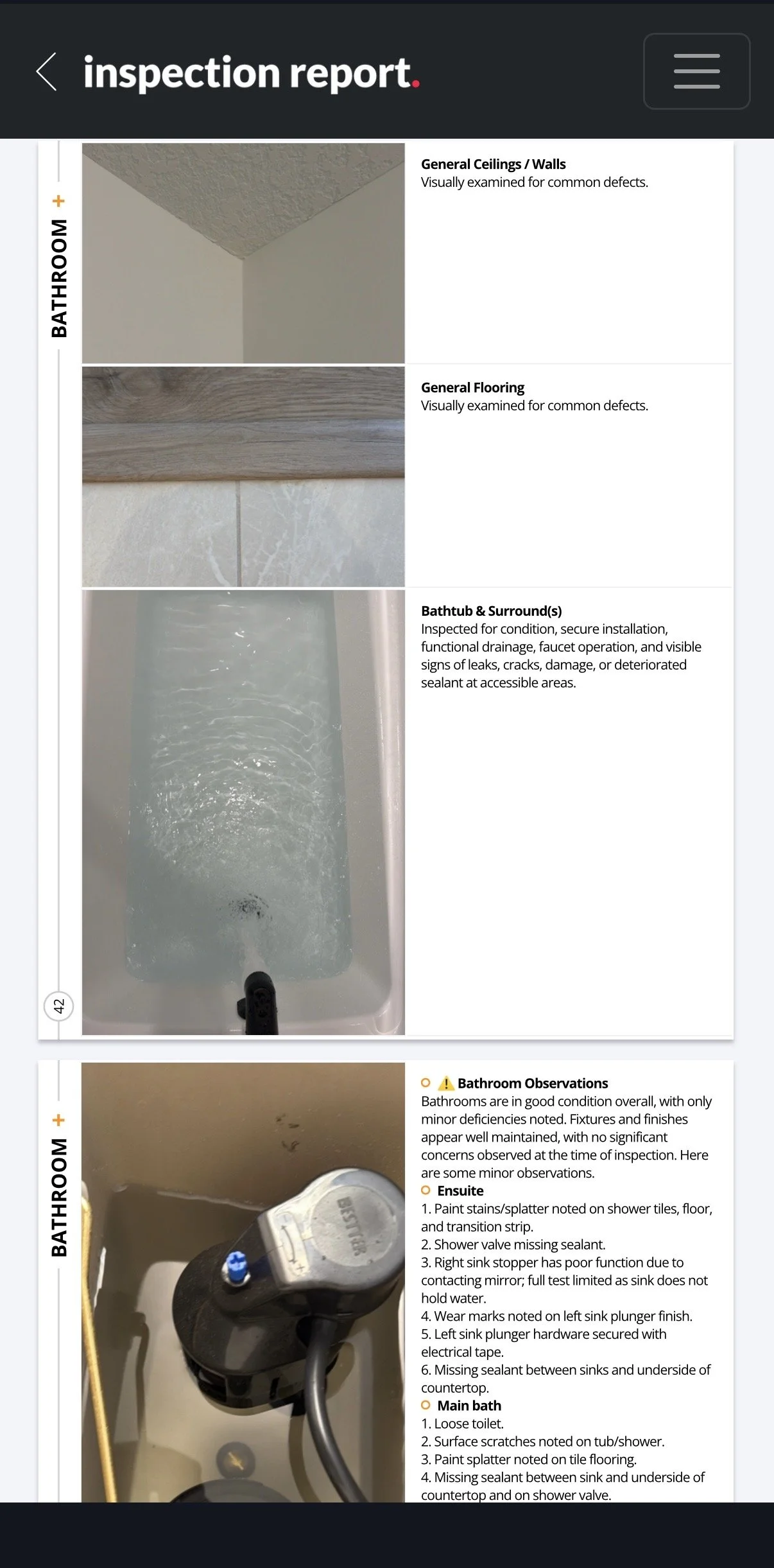
Add a Focus Page. Focus Pages are pre-built extensions of the Baseline for components such as an AC unit, elevator, sauna, steam room or additional attic.
If it's there, add the Focus Page and continue your Baseline.
How to add a Focus Page
- Open your working template. Do not make changes from the Template Library.
- Click Edit at the top of the template.
- Select the chapter where you want to add the page.
- Click the red + in the top-right corner.
- Select the pre-built Focus Page you want to add.
- The new page will appear at the bottom of the chapter. Drag it up to the appropriate position.
Use the Black Box
You've inspected the area. Now capture the smaller deficiencies and add context.
Use talk-to-text. Keep it short and organize your observations by location.
Start with: "I'm inspecting the [location]..."
📷 › See Black Box Examples


Add Extras Only if Needed
First, make the most of your Baseline. Then decide if more photos are needed.
Before adding another page, look at what you've already captured. Use your best Baseline photo and clear words to document the condition.
If additional photos are still needed to clearly document a significant defect or condition, add a blank Extras page.
See the window example
Instead of immediately adding more photos, replace the Baseline photo with a clear photo of a deficient window and use your words to identify the other locations:
x2 Upstairs - Failed Seals
x1 Powder Room - Won't Close
If that photo and description clearly document the condition, you don't need an Extras page.
How to add an Extras page
Add a blank Extras page the same way you add a Focus Page:
- Open your working template and click Edit.
- Select the chapter where you need the additional page.
- Click the red + in the top-right corner.
- Select a blank Extras page.
- The page will appear at the bottom of the chapter. Drag it into position before the Black Box.
- Add the additional photos and information needed to document the condition.
Repeat
Move to the next chapter and follow the same roadmap.
